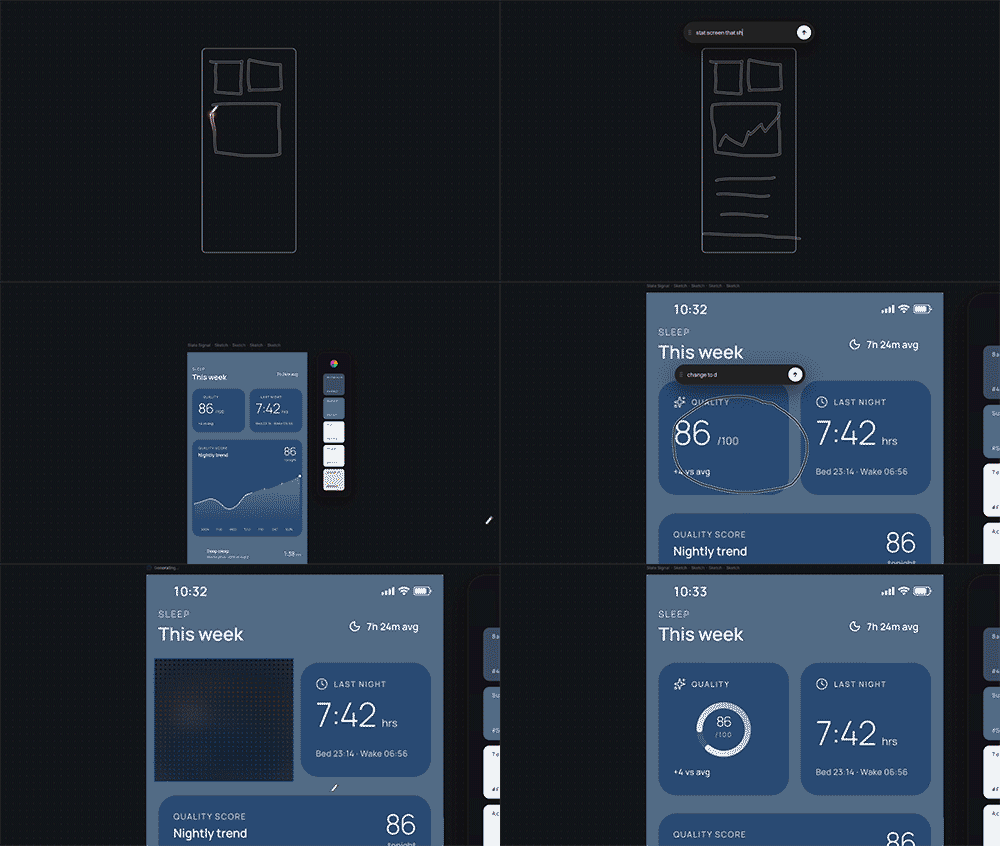
Draw a new screen
1
Pick the pen
Press D, or choose Sketch on the toolbar.
2
Draw on empty canvas
Draw where you want the screen to go. A rail on the right has Draw (P),
Erase (E), Undo and Redo.
3
Say what it is
A box appears on your drawing. Type what the screen is (“a stats screen
for a sleep tracker”), or send it with no words. The screen lands where you
drew it, following your layout.
Mark up an existing screen
Draw on top of a screen, circle the part you mean, and describe the change (“change this to a ring chart”). Only that screen is edited, in place.Good to know
- Press Backspace in an empty box to throw the sketch away.
- Switching to another tool (except Hand) discards an unsent sketch.
- Press Esc or V to leave the pen.
- You can also start a sketch from the chat: +, then Sketch.